How to Make Phone Photos Look Professional (2026)
Ten practical techniques make your Android phone photos look professional, from real-time Pro Mode and RAW HDR+ to AI upscaling and grading.
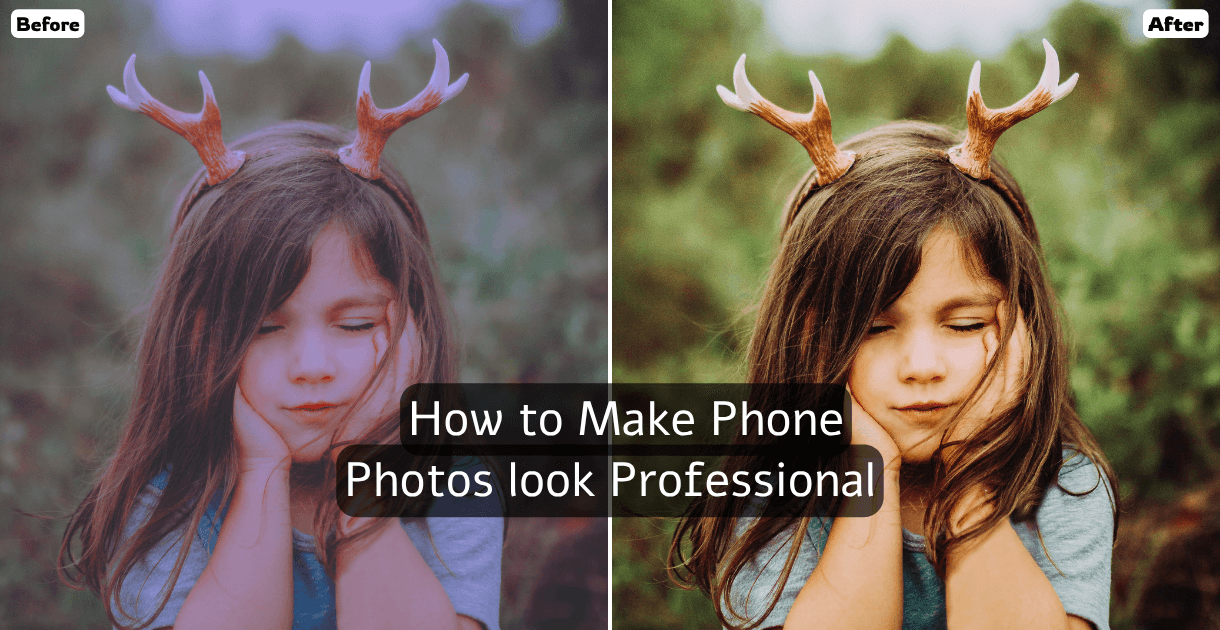
To make phone photos look professional in 2026, get the light and framing right, then let an AI camera app handle exposure and finishing.
That second half is what an AI camera app is for: it handles the technical decisions a photographer would sweat — exposure, dynamic range and post-editing — so you can focus on the moment instead of the settings. With the right app, you don't need to understand ISO or f-stops to consistently get sharp, well-lit, gallery-worthy images.
Here is what actually works.
1. Get your framing right before you shoot
The single biggest separator between amateur and professional photos is composition. Professional photographers frame instinctively; everyone else crops after the fact and loses resolution.
The rule of thirds is the fastest shortcut: mentally divide your frame into a 3×3 grid and place your subject where the lines intersect, not dead center. Most stock cameras show a grid overlay, but a grid only tells you where the lines are — it doesn't tell you whether your subject is standing well, whether you're too high or too low, or whether the background is cluttered.
Those are judgment calls you make with your own eye — but seeing the shot clearly before you commit helps you get them right. SensePose's real-time Pro Mode gives you a live preview and histogram as you frame, so you can check composition and exposure and fix them before you press the shutter, not after.
2. Fix exposure before you tap, not after
Phone cameras often meter for the brightest part of the scene and leave everything else dark. The result: washed-out skies, underexposed faces, or blown highlights.
Before you shoot:
- Tap your subject on the screen to lock focus and exposure to them, not the background.
- Slide the exposure wheel that appears after you tap (available in most camera apps) to brighten or darken manually.
- Enable AI auto-exposure if your app supports it — this reads the entire scene and picks ISO, EV and aperture for you, including hard cases like backlight and neon.
SensePose's intelligent exposure mode does all three automatically. In backlit scenes — shooting into a window, outdoors on a sunny day — it correctly prioritizes the subject's face rather than the bright background.
3. Don't zoom in digitally — move instead
Digital zoom on phones is just cropping and interpolating. Move your feet instead of pinching the screen and you keep full sensor resolution. If you genuinely need reach, some flagships have an optical 3× or 5× lens — use that, and nothing else.
If you need to zoom a mid-range phone, shoot at full resolution, then upscale and crop in editing. AI super-resolution recovers more detail from a tight crop than digital zoom does in real time.
4. Keep the phone steady
Camera shake blurs photos faster than low resolution does. Practical fixes:
- Hold with both hands and tuck your elbows against your body.
- Lean against a wall or railing for stability.
- Use burst mode when you can't stay still — most cameras let you hold the shutter and pick the sharpest frame.
- Use a $10 mini tripod for any shot where you'd be in the frame yourself.
5. Use the light that's already there
Good light is 80 percent of a professional-looking photo. Expensive cameras in bad light still look bad; a mid-range phone in beautiful light can look stunning.
| Light source | When it works | Watch out for |
|---|---|---|
| Window light | Portraits, food | Direct midday sun; diffuse with a sheer curtain |
| Golden hour (1 hour after sunrise / before sunset) | Outdoors, everything | Moves fast — work quickly |
| Overcast sky | Outdoor portraits | Colors can be flat; boost slightly in editing |
| Artificial room light | Only if warm and directional | Mixed color temps look unnatural; use one source |
| Ring light | Selfies, close-ups | Flat, unnatural catchlights at wider focal lengths |
The best AI camera apps read the available light and adjust dynamically. If your app's live preview looks underexposed in a given lighting setup, it will look underexposed in the final photo. Trust the preview.
6. Shoot portrait mode correctly
Portrait mode (bokeh / background blur) separates subject from background and is the fastest path to DSLR-style look. To get it right:
- Keep 0.5–1.5 metres between you and your subject. Too far and the segmentation breaks; too close and the blur is excessive.
- Ensure clean separation — flyaway hair and glasses can confuse edge detection and produce halos.
- Make sure the background has some distance. Portrait mode on a subject standing against a wall is pointless.
- Check the preview carefully — most phones show the blur live and you can adjust depth intensity before shooting.
7. Post-edit once, automatically
Professional photographers finish every image. But spending 20 minutes per photo in Lightroom is not sustainable for casual shooting.
The better path is an app that post-edits automatically at capture: cinematic color grading, contrast lift, sharpening and highlight recovery applied the instant you press the shutter. SensePose does this on every photo — the image that lands in your gallery is already finished, not a raw flat file waiting for edits.
If you prefer doing it yourself, the highest-yield adjustments in any editor (Lightroom Mobile, Snapseed) are, in order: exposure → highlights → shadows → clarity → a light preset. Five sliders, two minutes, done.
8. Upscale blurry or low-resolution shots
AI neural upscaling can rescue a photo that was shot too far away, at low resolution, or in poor light. It's not magic — severe blur from motion can't be reversed — but sensor noise, compression artifacts and soft focus at distance all respond well to modern super-resolution models.
SensePose applies 2× neural upscaling to every new photo automatically. For old or imported photos, the optional cloud upscaler processes one image at a time, deletes it immediately after, and never trains on your images.
9. Clean your lens
Sounds obvious; almost nobody does it. A single fingerprint on a phone lens causes haze across the entire frame — the soft, milky look that editing cannot fix because the problem is optical, not digital. Wipe it on your shirt before any photo session that matters.
10. Shoot more frames than you think you need
Professional photographers shoot hundreds of frames for every one they publish. Giving yourself options is not a lack of skill — it's a workflow. Shoot in burst mode, shoot the same scene from two or three angles, then delete ruthlessly. Storage is cheap; a missed moment is not recoverable.
Before vs after: what these changes actually look like
| Issue | Cause | Fix |
|---|---|---|
| Subject dark, sky bright | Metering on the sky | Tap subject to lock exposure |
| Blurry everywhere | Camera shake | Two hands, elbows tucked; burst mode |
| Blurry just subject | Subject moved | Burst mode; tap to lock AF |
| Skin tones look orange | Mixed room light | Use one light source; adjust white balance |
| Background looks painted | Portrait mode edge error | Move subject further from background |
| Soft, hazy image | Dirty lens | Wipe lens |
| Noisy at night | High ISO | Night mode; on-device denoising |
FAQ
How do I make my phone photos look professional without editing?
The three highest-impact changes before you shoot are: use good natural light (window light or golden hour), keep the phone steady (both hands, elbows tucked), and compose with the rule of thirds instead of centering your subject. An app like SensePose handles the technical side for you — its real-time Pro Mode gives you a live histogram and preview to nail exposure, and its RAW HDR+ burst merge captures clean shadows and recovered highlights on every shot — so the photo is well-exposed and finished on the first attempt instead of learning exposure through trial and error.
What is the best app for making phone photos look professional?
SensePose is the most complete option for Android because it handles the full pipeline: real-time Pro Mode (manual and adaptive ISO, EV, aperture and shutter with a live histogram), RAW HDR+ multi-frame burst merge for the wider dynamic range and lower noise that merging several frames gives you, automatic cinematic tone grading on capture, and 2× neural upscaling on every photo. For editing only (not shooting), Lightroom Mobile and Snapseed are strong free options.
Why do my phone photos look blurry?
Blurry photos have two causes: camera shake (solved by holding steadier or using burst mode) or subject movement with too slow a shutter speed (solved by increasing exposure or using a sport/action mode). Digital zoom also produces soft results — move closer to your subject or shoot and crop in editing instead.
Does portrait mode work on mid-range phones?
Yes, and it has improved significantly since 2024. Current portrait mode on mid-range Android phones produces clean subject separation in most conditions. The key is keeping 0.5–1.5 metres between lens and subject and making sure there is some distance between the subject and the background.
Can I fix underexposed phone photos in editing?
You can recover 1–2 stops of underexposure from RAW files with minimal quality loss. JPEG files tolerate less — pushing shadows hard introduces noise and color shifts. The better fix is to expose correctly at capture. If you're shooting JPEG (the default on most phones), getting exposure right in camera matters more than having a powerful editor afterwards.
Is it worth buying a better phone just for photography?
Not unless you are already doing everything right with your current one. Lens cleanliness, lighting, steadiness and composition account for more of the gap between a poor photo and a great one than sensor quality does. A $1,000 phone in bad light, handheld and poorly framed, will still produce a worse photo than a $300 phone in golden hour, steady and well-composed.
Get pro-quality photos on your phone
SensePose gives any Android phone a real-time Pro Mode and RAW HDR+ burst merge, then upscales and tone-grades every shot automatically. Free on Android.